![TT Logo.png]](https://25843872.hs-sites-eu1.com/hs-fs/hubfs/TT%20Logo.png?height=50&name=TT%20Logo.png)
Note: You only need to add a certificate manually if you were previously trained by Team Teach and hold an active legacy certificate.
Any new training completed through Team Teach Connect will be automatically added to your profile
-
Access Your Profile
-
Click your name to open the dropdown menu in the top navigation panel.
-
Select ‘My Profile’ from the menu.
-
-
Open Edit Mode
-
In your profile, select ‘Edit Profile’ from the side panel.
-
-
Add Your Legacy Certificate
-
Scroll down and select the ‘Add Certificate’ button.

- Enter your legacy certificate number — this can be found on the certificate issued after your training.
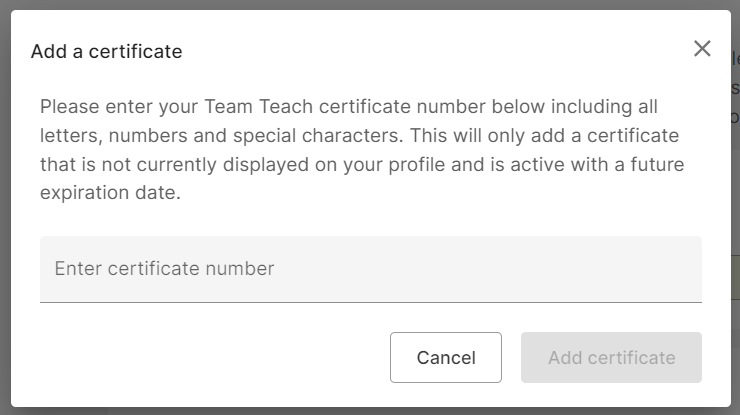
If you’re unsure of your certificate number, please contact Team Teach for assistance.
Important: The certificate must match the full name you used during your training.
-
-
Submit the Certificate
-
Click ‘Add Certificate’. Your certificate will now appear in your profile, including its expiry date.
-
-
Save Your Changes
-
Select ‘Save Changes’ to confirm your updates.
-
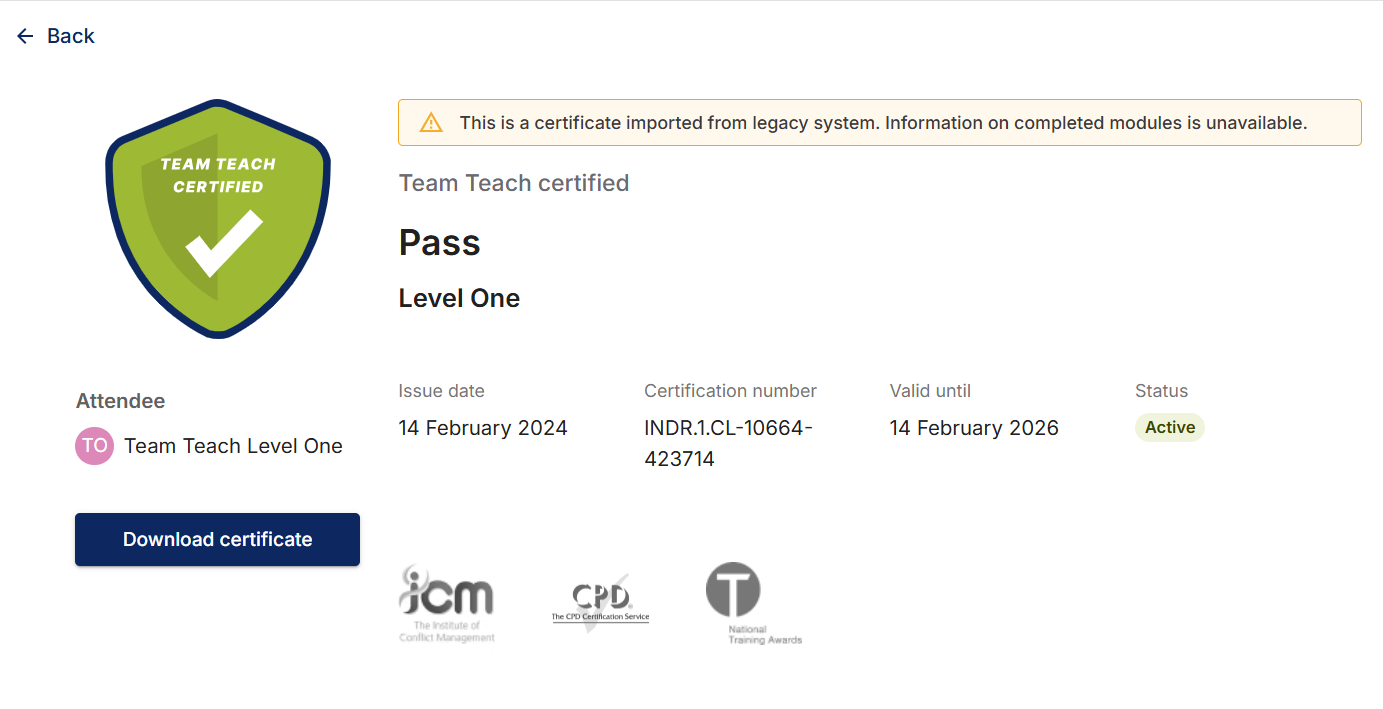
Your legacy certificate will now be visible in your user profile.
- You can click 'Download certificate' to download a PDF copy.
-