![TT Logo.png]](https://25843872.hs-sites-eu1.com/hs-fs/hubfs/TT%20Logo.png?height=50&name=TT%20Logo.png)
-
Access Your Courses:
Click on the ‘My Courses’ tab in the top navigation panel to view all your courses. -
View Course List:
Courses are displayed by default in date order. -
Sort Your Courses:
Use the tabs at the top of the course list to change the display order. You can sort by:-
Course name
-
Start or end date
-
Creation date
-
Course type
-
-
Check for Pending Actions:
Any courses that require your response — such as invitations you haven’t accepted or declined — will appear at the top of your screen under the ‘Action Required’ section.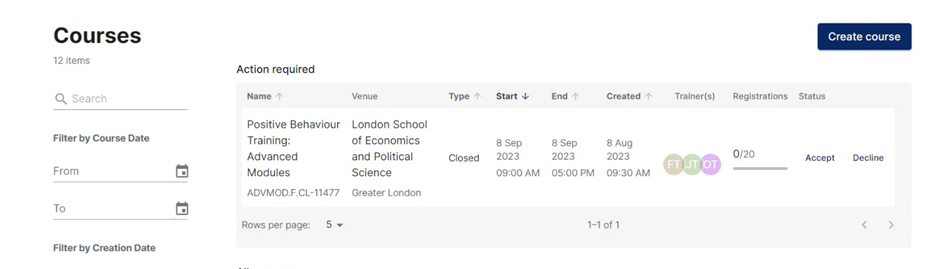
-
Browse Course Statuses:
Scroll through the list to view the status of each course at a glance. -
Filter by Course Status:
Use the drop-down menu on the left side of the screen to filter your courses by status. Select an option to view only courses with that specific status.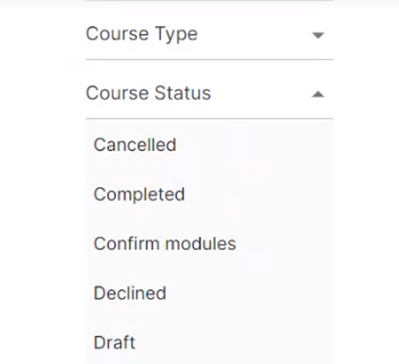
Available status options include:
| Status | Description |
|---|---|
| Cancelled | The course was scheduled but has now been cancelled. |
| Completed | The course has finished, and all evaluations, grading, and certification are complete. |
| Confirm Modules | The course has been accepted or created, but training modules have not yet been selected. |
| Declined | A course with exceptions was not approved by the Learning & Development Team. |
| Draft | The course is being created but hasn’t been submitted yet. |
| Exceptions Approval Pending | The course is awaiting approval from the Learning & Development team due to exceptions |
| Missing Evaluation | The course has not yet had the final summary evaluation submitted. |
| Missing Grade | One or more participants still need to be graded. |
| Scheduled | The course is upcoming and has all required modules selected. |
| Trainer Declined | An invited assist trainer has declined the invitation. |
| Trainer Missing | One or more assist trainers still need to be assigned. |
| Trainer Pending | One or more trainers have been invited but haven’t responded yet. |
Note on Navigation:
If you navigate away from the ‘My Courses’ page, the list will reset to the default date order when you return.