![TT Logo.png]](https://25843872.hs-sites-eu1.com/hs-fs/hubfs/TT%20Logo.png?height=50&name=TT%20Logo.png)
After delivering your course, you can grade your participants through Team Teach Connect. Once grading is complete and participants have submitted their course evaluation , certificates will be issued automatically.
- Access Your Course
- Go to the top navigation panel and select the ‘My Courses’ tab.
- Click on the name of the course you want to grade to open the course details.

- Begin Grading
- Navigate to the ‘Grading’ tab.

- Confirm that each participant has met the course grading criteria. All participants are selected by default.
-
To remove a participant, de-select them individually or use the ‘Deselect All’ button.
-
⚠️ De-selecting a participant automatically marks them as having failed the course.

-
-
Click ‘Confirm Grading’ to proceed.
- Navigate to the ‘Grading’ tab.
- Confirm Delivered Modules
- You will now see a list of modules from the course builder.
- Expand each module using the drop-down arrow to review its elements.
- De-select any modules or module elements that were not delivered during the course.
-
Note: Core modules are mandatory and cannot be de-selected.
- Grade Participants
- Grade participants individually, in groups, or all at once using the ‘Grade All Attendees’ button.
-
-
Use the drop-down arrows to view module elements.
-
De-select any modules or elements the participant(s) did not complete.
- Please include notes in any sections where a technique was observed or not demonstrated.All delivered modules will be displayed and automatically selected.
-
- Confirm Grading
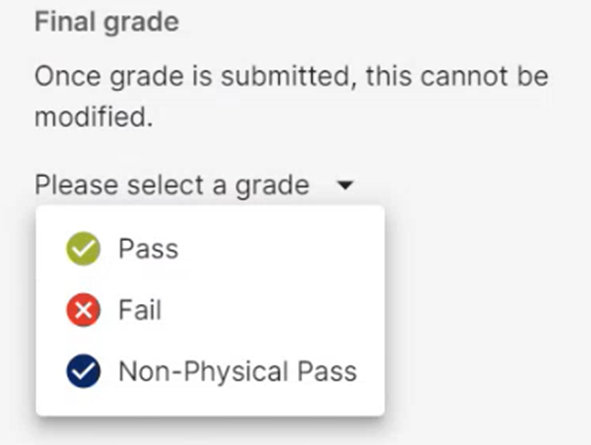
- A confirmation pop-up will appear. A confirmation pop-up will appear. A grade cannot be changed after submission.
- Click ‘Confirm’.
- You will be returned to the Grading tab of the course overview page.
- To view a participant’s individual grading details, click the ‘View’ button next to their name.
- Repeat this process for any remaining participants or groups if you chose not to grade all attendees at once.
- View Participant Feedback