![TT Logo.png]](https://25843872.hs-sites-eu1.com/hs-fs/hubfs/TT%20Logo.png?height=50&name=TT%20Logo.png)
-
Go to 'My Courses'
-
Begin by clicking the ‘My Courses’ tab in the top navigation bar.

-
-
Select 'Create Course'
- If you don’t see this option, make sure you've selected your User role as a Trainer. You can switch roles using the drop-down menu in the top navigation panel.
-
Select the Course Residing Country
- Select the country where you will be delivering the training.
- Select the country where you will be delivering the training.
-
Enter Organisation Details
-
Type in the name of the organisation receiving the training.
- Enter the Organisation Key Contact details - Please note, the contact will have access to the course, attendee details and certificate information.
-
-
Select the Course Level
-
Select the appropriate course level from the options provided.
-
-
Blended Learning & Reaccreditation Options
-
Use the toggle to indicate if the course is Blended Learning or a Reaccreditation.
-
If you select Blended Learning, additional setup steps are required.
- If you are apart of a larger group who buys the online modules in bulk, this will be removed from the license total.
- If you are an individual organisation looking to use the online modules, you will be charged $78 +GST per person.
- Please do get in touch with the team on info@teamteach.com.au if you would like to bulk purchase licenses at a discounted price.
-
-
Set the Delivery Type
-
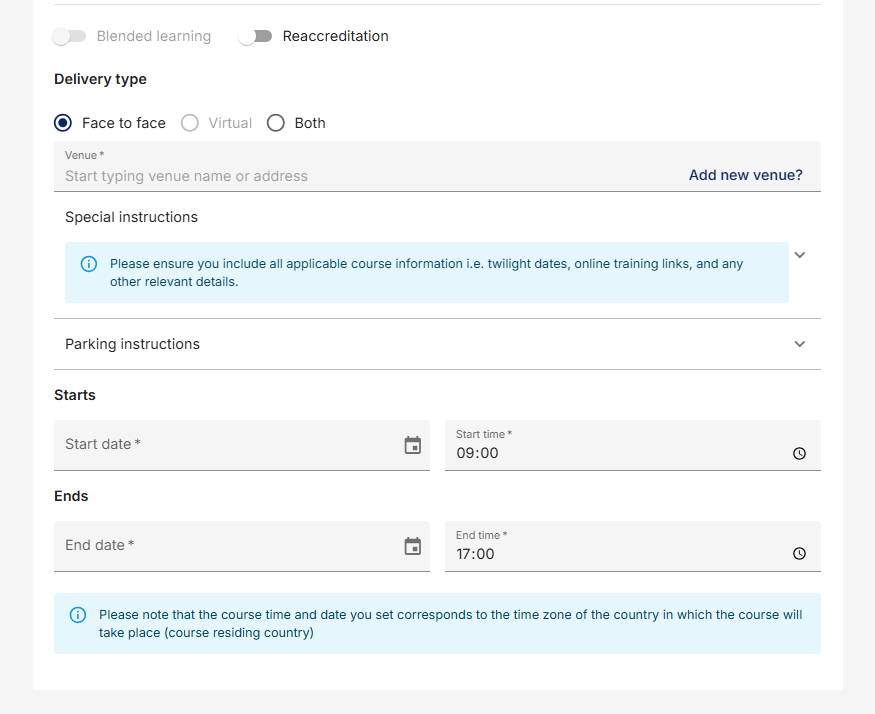
Choose how the course will be delivered.
If your course includes both face-to-face and virtual sessions, be sure to:
-
Add a meeting link in the special instructions for the virtual component.
-
-
Add Venue Information
-
Enter the venue address for any in-person sessions.
-
Use the Special Instructions field for any extra details (e.g., twilight session info, extra meeting links, dates, or timings). These instructions will be included in attendee communications.
-
-
Parking & Accessibility
-
if needed, add parking or other relevant logistical information.
-
-
Set the Course Schedule
-
Enter the start and end date/time for your course.
-
Important:
An exception will be raised if the start date of training is due to take place within 4 weeks of the date that you submit the training course.
An exception is also raised if you have an insufficient amount of assist trainers for the number of course participants.
If your certification has expired and you try to book a training course, this will also raise an exception.
All exceptions must be approved by the Learning and Development team.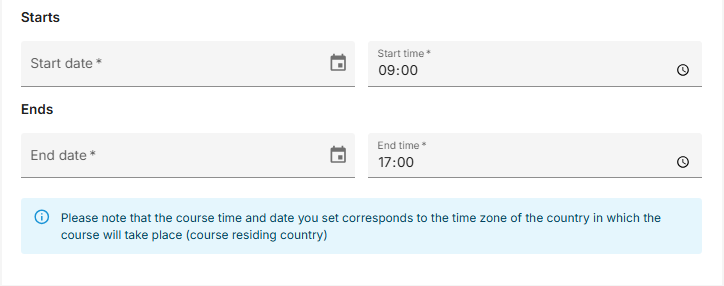
-
-
Add Attendee Numbers
Enter the total number of expected attendees.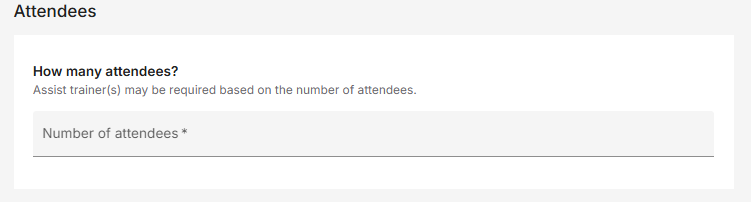
-
Assign an Assist Trainer (Optional)
-
If needed, assign an assist trainer by searching by name or email. You’ll see all registered trainers in the dropdown list.
-
Important: Assigning a trainer does not guarantee their attendance—please confirm availability directly with them before assigning.
-
-
Final Steps
Review all information and confirm the required checkboxes.
Click “Course Builder” to complete setup.
Once your course is created, you can begin selecting your course modules.