- Go to the Login Page
Navigate to the Team Teach Connect login page and select "Forgot Password"
Note: If you haven’t created a Team Teach Connect account yet, please refer to the article Registering to Connect for setup instructions.
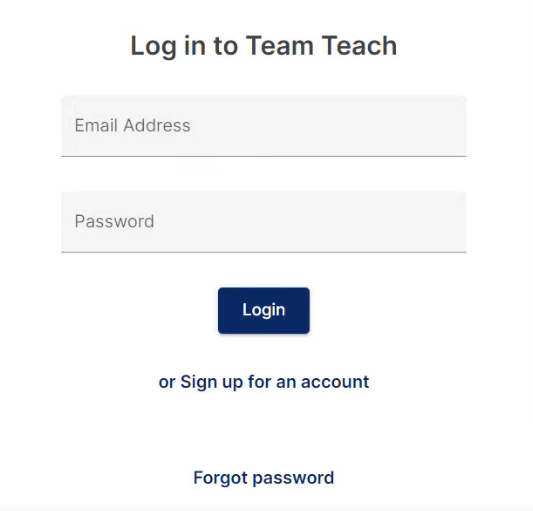
- Enter Your Email Address
Enter the email address associated with your Team Teach Connect account, then select Submit.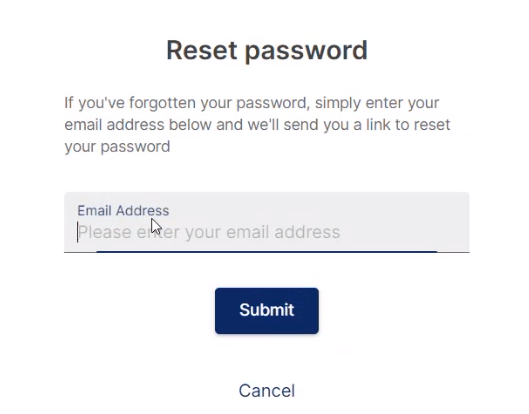
- Check Your Email for a 6-Digit Code
A 6-digit verification code will be sent to your email.
Didn’t receive the code? You can select Resend Code to try again.
- Create a New Password
Once you’ve received the code, you'll be prompted to set a new password.
Your new password must:
Be at least 8 characters long
Include at least one uppercase letter
Include at least one number
Include at least one special character (e.g., !, @, #) - Enter the Code and Reset Your Password
Copy and paste (or manually enter) the 6-digit code from your email into the verification field. Then select "Reset Password."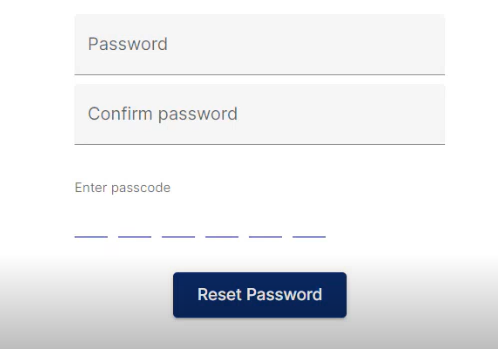
- Login with Your New Password
Your password has now been successfully reset. You can use it to log in to your Team Teach Connect account.
English
![TT Logo.png]](https://25843872.hs-sites-eu1.com/hs-fs/hubfs/TT%20Logo.png?height=50&name=TT%20Logo.png)