![TT Logo.png]](https://25843872.hs-sites-eu1.com/hs-fs/hubfs/TT%20Logo.png?height=50&name=TT%20Logo.png)
If you are using Blended Learning -
- 3 hours of theory will be delivered via the online learning modules.
- Additionally, you must ensure that suitable time during the face-to-face sessions is spent reinforcing these modules, allowing participants to deepen their understanding whilst providing opportunity for discussion.
-
Go to 'My Courses'
-
Begin by clicking the ‘My Courses’ tab in the top navigation bar.

-
-
Select 'Create Course'
- If you don’t see this option, make sure you've selected your User role as a Trainer. You can switch roles using the drop-down menu in the top navigation panel.
-
Select the Course Category
- Select from the “Course Category” dropdown.
-
Enter Commissioning Organisation Details
-
Type in the name of the organisation receiving the training.
- Enter the Organisation Key Contact details - Please note, the contact will have access to the course, attendee details and certificate information.
-
-
Select the Course Level
-
Select the appropriate course level from the options provided.
-
-
Blended Learning & Reaccreditation Options
-
Ensure the Blended Learning toggle is switched ON.
-
Toggle if this is also a reaccreditation coursed.
-
-
Set the Delivery Type
-
Choose how the rest of the course will be delivered.
If your course includes both face-to-face and virtual sessions, be sure to:
-
Add a meeting link in the special instructions for the virtual component.
-
-
Add Venue Information
-
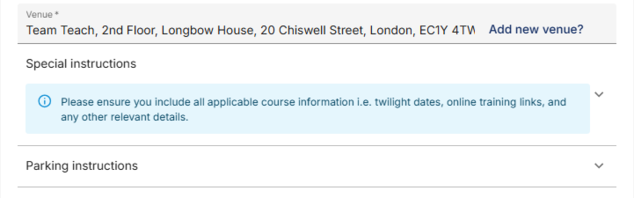
Enter the venue address for any in-person sessions.
-
Use the Special Instructions field for any extra details (e.g., twilight session info, extra meeting links, dates, or timings). These instructions will be included in attendee communications.
-
-
Parking & Accessibility
-
if needed, add parking or other relevant logistical information for the face-to-face session.
-
-
Set the Course Schedule
-
Enter the start and end date/time for your course.
-
Important:
An exception will be raised if the start date of training is due to take place within 4 weeks of the date that you submit the training course.
An exception is also raised if you have an insufficient amount of assist trainers for the number of course participants.
If your certification has expired and you try to book a training course, this will also raise an exception.
All exceptions must be approved by the Learning and Development team.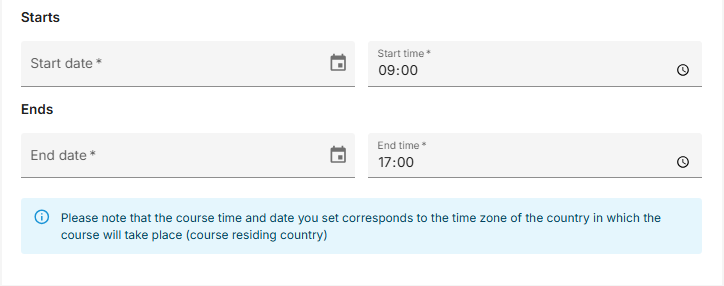
-
-
Add Attendee Numbers
Enter the total number of expected attendees.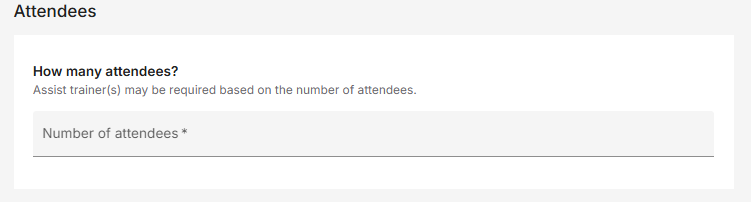
-
Assign an Assist Trainer (Optional)
- If needed, assign an assist trainer by searching by name or email. You’ll see all registered trainers in the dropdown list.
- Important: Assigning a trainer does not guarantee their attendance—please confirm availability directly with them before assigning.
-
Blended Learning Order Details
- Enter the invoice information
-
Prices and taxes will be displayed in your local currency.
-
- If your organisation uses bulk licence purchases, the licence will be deducted from your available total.
- To finish later, click ‘Save as Draft’.
- To confirm the booking, select ‘Review and Confirm’. A course summary will be displayed.
- Enter the invoice information
-
Course Builder
- Go to ‘Course Builder’ to select which modules will be delivered.
- Once you’ve confirmed your modules:
-
You’ll receive an email with instructions for directing participants to the online training (completed via Go1).
-
Participants will receive an email invite to accept or decline the course.
-
Please note, a Blended Learning licence is deducted once a participant accepts the invitation.
-
Participants will also receive instructions for registering and accessing the online modules via Go1.
- This will come from the email address - noreply@mygo1.com. (To reduce the likelihood of this email going to their junk mail, please speak with your IT provider to ensure this email address is marked as a 'safe' sender).
- The email will contain a onetime login link, which will allow them to access Go1 and set their password.
- Once they have set their password, they can access their dashboard and start learning.
- Our Blended Learning online modules are self-paced independent learning, so individuals can finish a module and come back to the learning at a more convenient time.
-
Participants Blended Learning status will update to ‘In Progress’, and will switch to ‘Completed’ once the individual has completed the online modules.
- All participants should complete the online self-guided modules prior to the face-to-face training.