![TT Logo.png]](https://25843872.hs-sites-eu1.com/hs-fs/hubfs/TT%20Logo.png?height=50&name=TT%20Logo.png)
If you are not currently an administrator, but think you should be, please contact Team Teach and we will be happy to help.
As an organisation administrator, you have access to a dashboard. This shows you the individuals trained in your organisation(s), their training status, and Blended Learning licences.
If you manage more than one setting, you will see all your organisations displayed together in the sub-navigation panel. You can move between individual organisations by selecting on each organisation’s name.

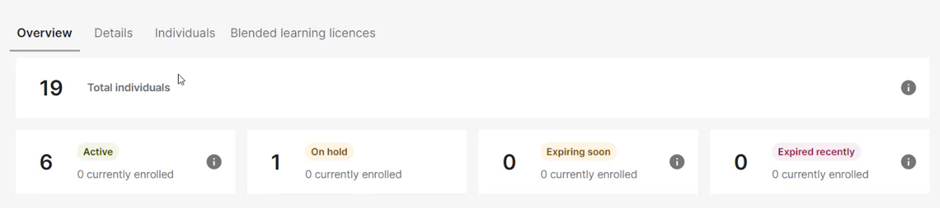
Select the ‘overview’ tab to see a list of your team and their certification status.

You will see a box containing information about the current status of your team.
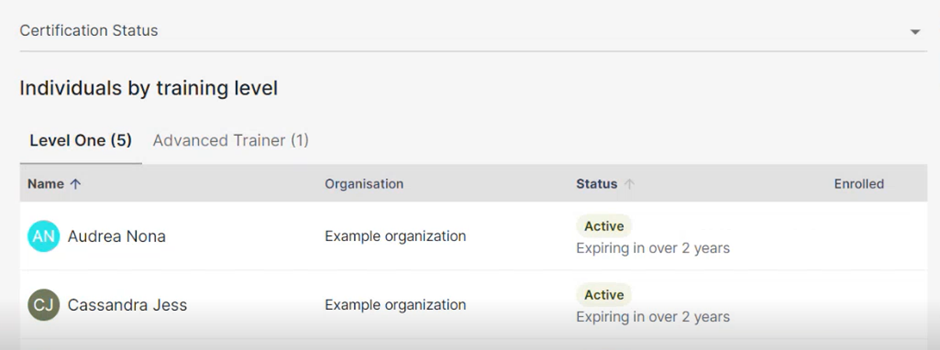
Move down the page to view the members of your team. You can filter by training level, by clicking on the different tabs available.
Select ‘see all courses’ to browse available courses and book staff members onto training courses.
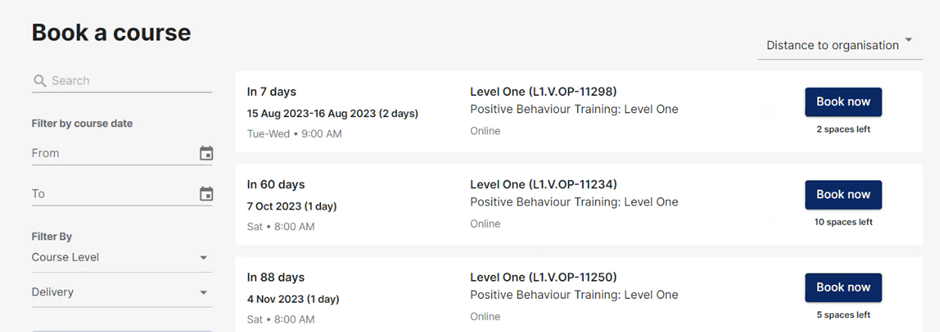
You can search for a specific course and use the filter options to find different training course options by distance and date. You can also search within specific dates and search by course level using the side panel filters.
You can also make an enquiry if you are interested in running a private course for your organisation. Select the ‘enquire now’ button to request more information.
Returning to your organisation dashboard, select the ‘details’ tab to see the information we hold about your organisation.

Select ‘edit organisation’ to make changes.
Returning to your organisation dashboard, select the ‘individuals’ tab to see the current status of your team.

You can see:
- Staff with active certification
- Staff who are booked onto a training course
- Staff with certificates that expire soon
- Staff with certificates that have expired.
To add an individual to your organisation, select the ‘invite individual to organisation’ button.
Enter the email address of the individual. Please make sure this is entered correctly as recipients will receive an email inviting them to join your organisation.
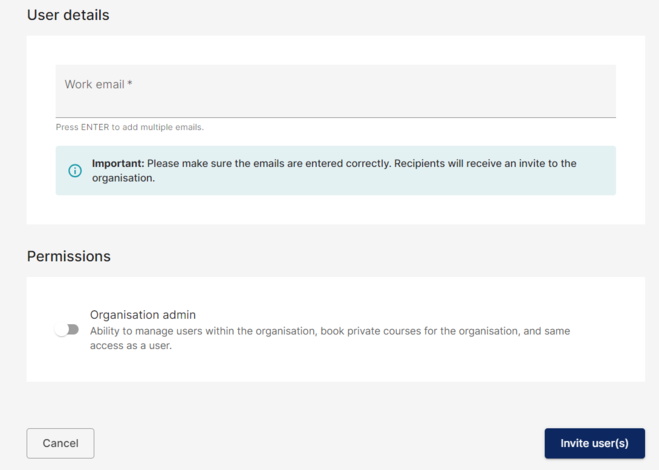
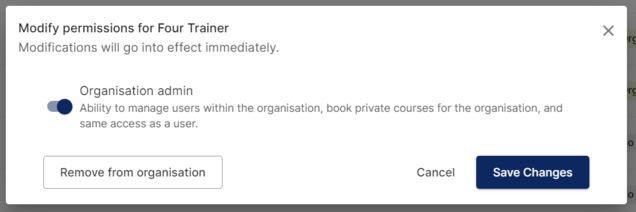
If you need to remove an individual from your organisation, or change their role, select 'edit' next to their details. A pop-up will appear, allowing you to remove the individual or change their role. As an organisation admin you also have the ability to assign an Individual within your organisation as an organisation admin.
Returning to your organisation dashboard, select the ‘blended learning licences’ tab to see available licences and unused licences that have been reserved for upcoming training courses.
Select the ‘export’ button to export this information as a spreadsheet.

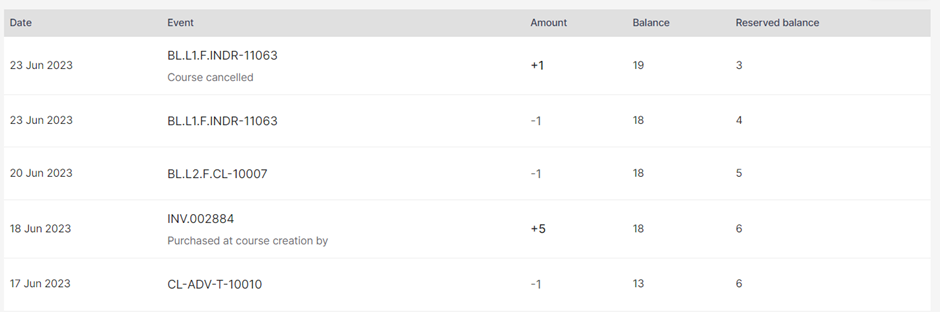
Moving down the page, you will see a tracker showing you how your licences have been used.
Blended Learning licences are purchased on a pay-as-you-go basis. To enquire about bulk purchasing blended learning licences, please contact Team Teach and we will be happy to help.