![TT Logo.png]](https://25843872.hs-sites-eu1.com/hs-fs/hubfs/TT%20Logo.png?height=50&name=TT%20Logo.png)
If you're a participant wishing to transfer your own booking to another course, follow the steps below:
1. Access Your Course Information
-
Click on the ‘My Courses’ tab in the top navigation panel.
-
Locate the course you’re currently booked on and select the course name to view its details.
2. Request a Transfer
-
Click ‘Change My Attendance’.

-
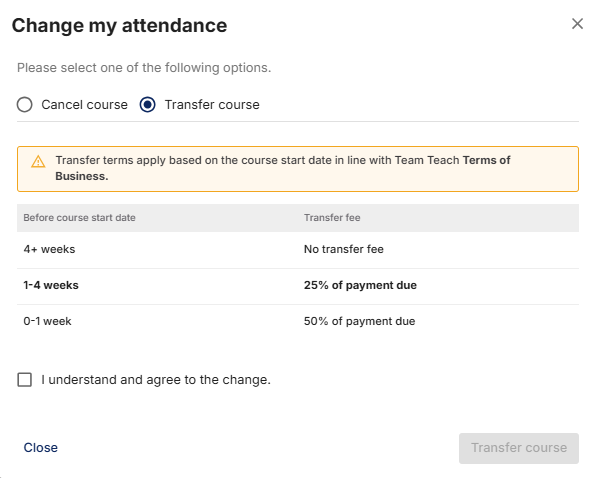
A pop-up will appear with two options:
-
Cancel your attendance
-
Transfer to another course
-
If you wish to cancel instead of transferring, please refer to the guide: Cancelling a Training Course
3. Choose to Transfer
-
Select ‘Transfer to Another Course’.
⚠️ Important: Transfer terms apply depending on how close it is to the course start date and a transfer fee may be applicable.
-
Tick the checkbox to confirm you agree to the transfer Terms of Business.
-
Click ‘Transfer to Another Course’ to proceed.
4. Select a New Course
-
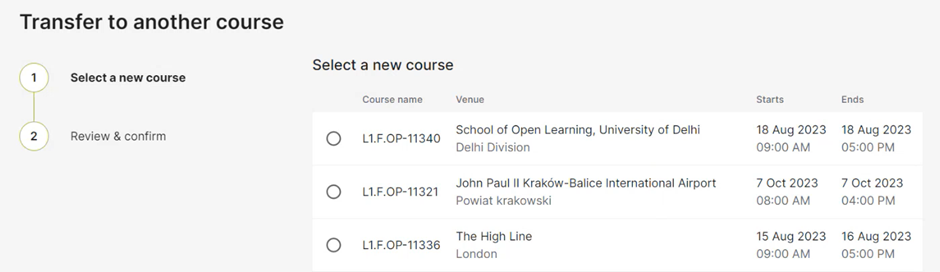
A list of available courses will now be displayed.
-
Browse the list and select your preferred course by clicking the button next to the course name.
-
Scroll to the bottom of the page and click ‘Review and Confirm’.
5. Confirm the Transfer
-
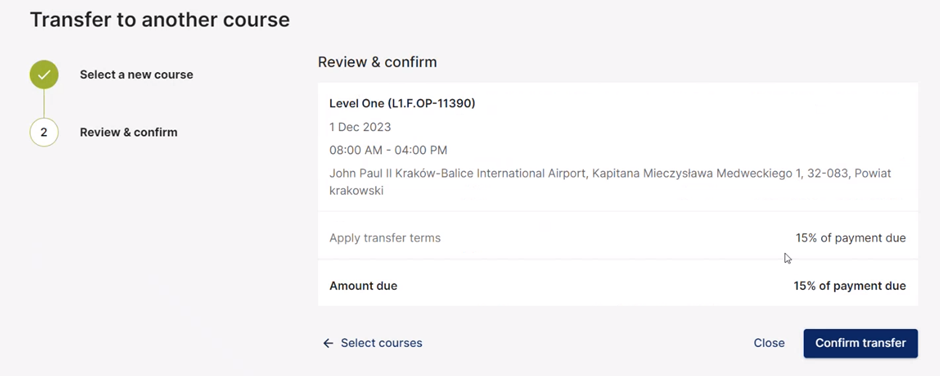
You’ll see a summary of your new course selection along with any applicable transfer fees.
-
If all details are correct, click ‘Confirm Transfer’.
6. View Updated Course Details
-
After confirming, click ‘Go to My Courses’ to view your updated course information.
-
You’ll also receive a confirmation email with the transfer details.
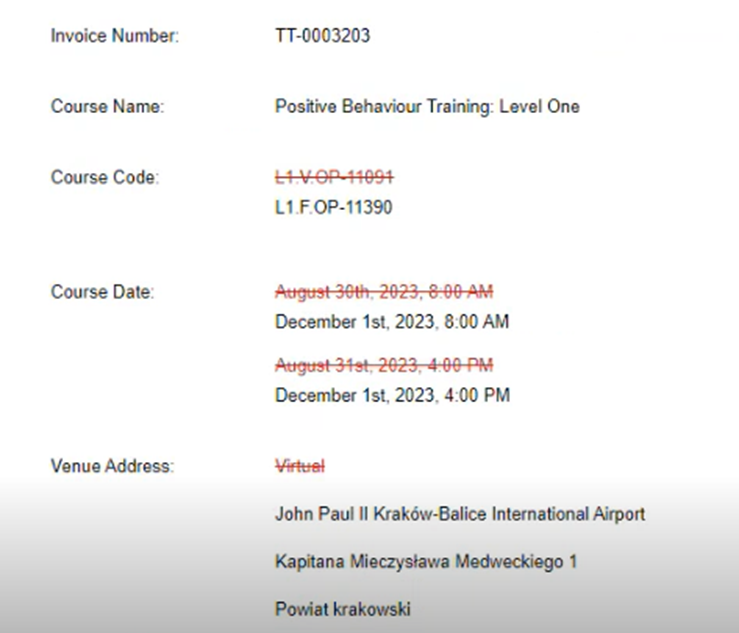
Your new course will now appear in the ‘My Courses’ tab in your Team Teach Connect dashboard.