![TT Logo.png]](https://25843872.hs-sites-eu1.com/hs-fs/hubfs/TT%20Logo.png?height=50&name=TT%20Logo.png)
-
Browse Available Courses
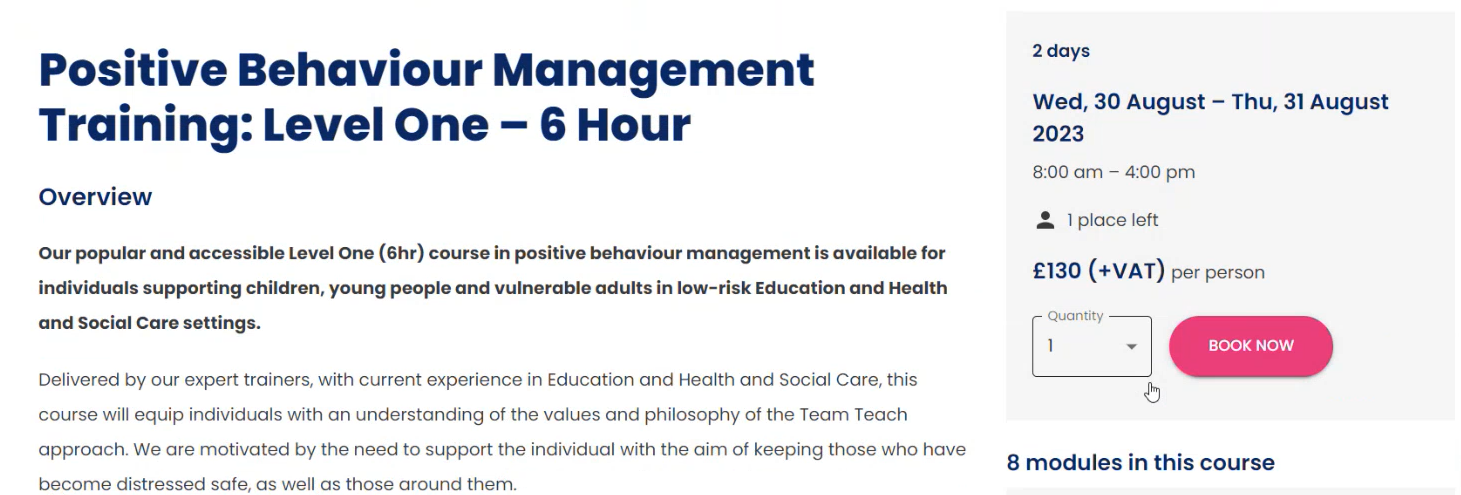
Visit the Team Teach website and select the ‘Book a Course’ button.Please note: Current prices and any applicable taxes will be displayed in your local currency. Images in this guide are for illustration purposes only.
-
Sign In or Register
-
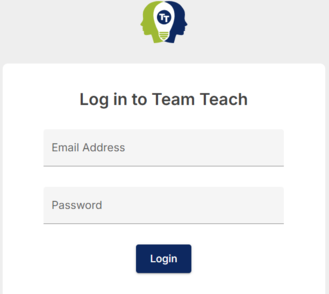
If you already have a Team Teach Connect account, select ‘Login’ and enter your email and password.
-
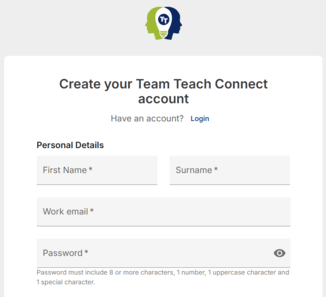
If you don’t have an account, you will be prompted to register for a free account.
-
-
Review Course Details
The course information will be displayed for you to review.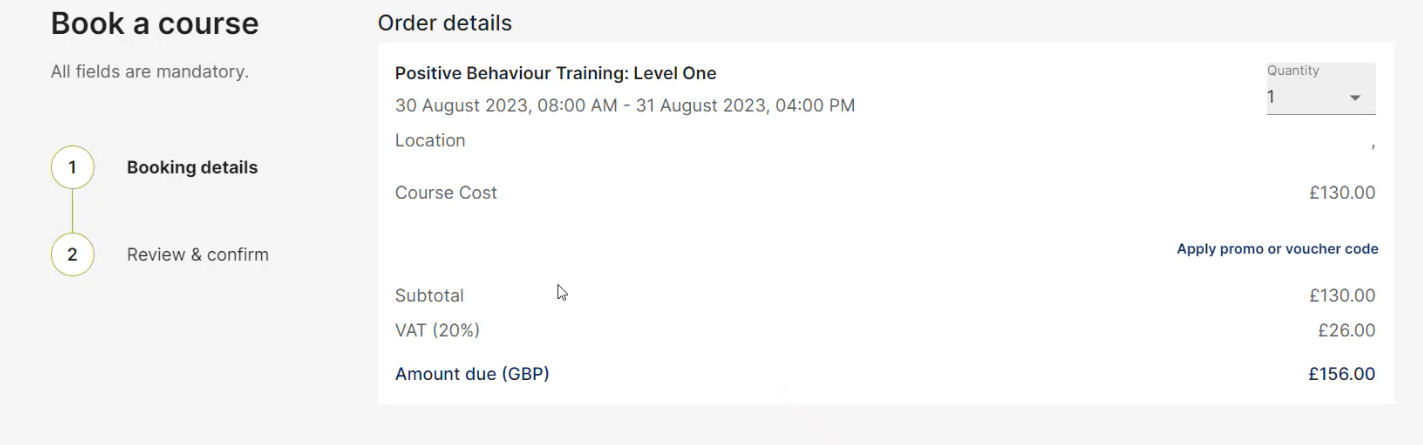
-
Enter Organisation and Participant Details
-
Fill in your organisation’s details.
-
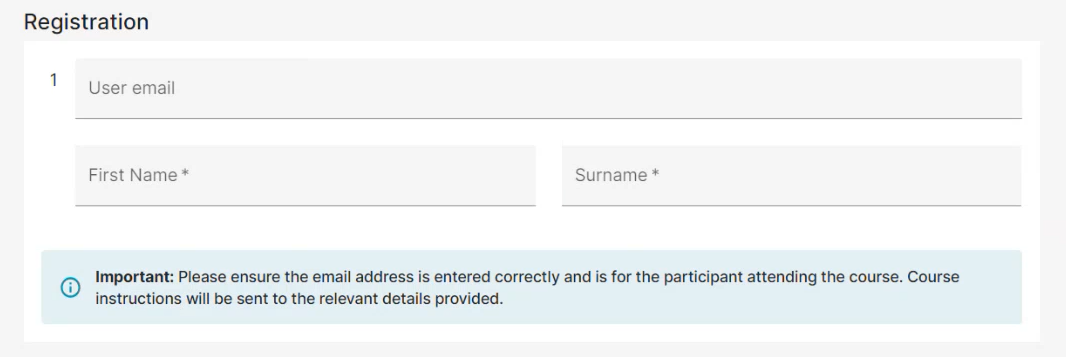
Enter the registration details for the participant attending the course.
Important: Please enter the participant’s email address accurately, as all course instructions will be sent there after booking.
-
-
Add Invoice Contact Details
Provide the contact information for the person responsible for receiving the invoice.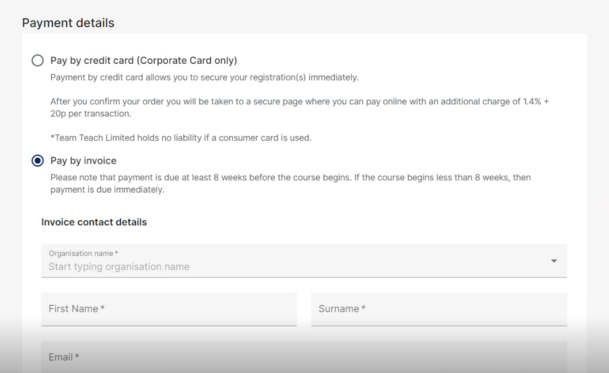
-
Review and Confirm Booking
-
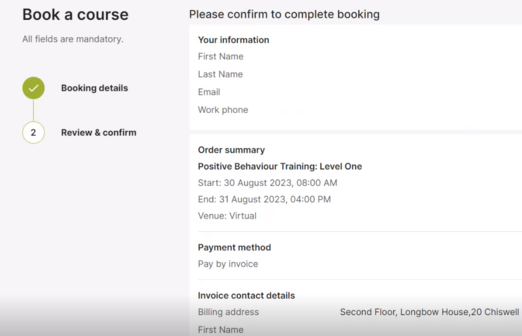
Select ‘Review and Confirm’ to see a summary of your booking.
-
Carefully check all details to ensure everything is correct.
-
-
Accept the Terms of Business, Privacy Policy and Complete Booking
-
Tick the box to confirm you understand the Terms of Business and Privacy Policy.

-
Click ‘Complete Booking’.
-
-
Booking Confirmation
A confirmation email will be sent to the email address registered with Team Teach. Course information will be sent directly to the participant’s email.
For tips on what to expect and how to prepare, see our article: Preparing For Your Course.