![TT Logo.png]](https://25843872.hs-sites-eu1.com/hs-fs/hubfs/TT%20Logo.png?height=50&name=TT%20Logo.png)
1. Access Your Profile
Click your name in the top navigation panel to open the dropdown menu.
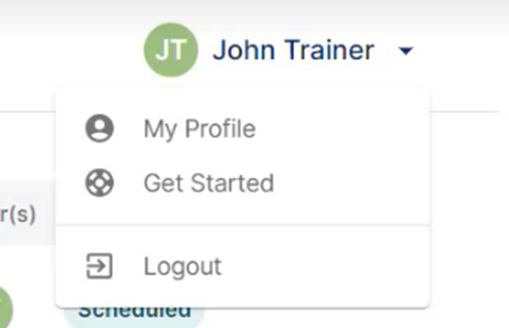
Select ‘My Profile’ to view your profile information.
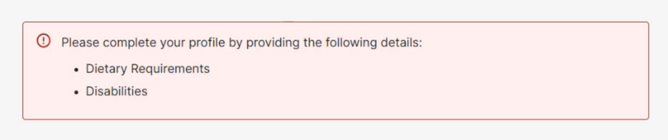
When setting up your account for the first time, you’ll be prompted to enter any dietary requirements or disabilities we need to be aware of while attending training.
2. Edit Your Profile
Click ‘Edit Profile’ in the side panel to begin making changes.
What You Can Edit
You can update the following information:
-
-
Phone number
-
Residing country
-
Job title
-
Dietary requirements
-
Disabilities or accessibility needs
-
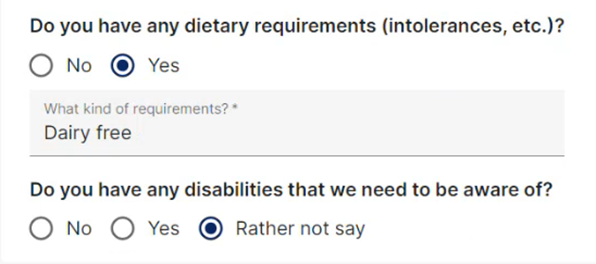
Selecting dietary requirements or disabilities will open a text box where you can provide specific details.
What You Cannot Edit
The following fields are locked as they are linked to your certification:
-
-
Full name
-
Date of birth
-
Email address
-
If any of this information needs to be updated, please contact Team Teach and we’ll be happy to help.
5. Adding a Legacy Certificate
If you have trained with Team Teach in the past, you can manually add your legacy certificate to your account.
For detailed steps, please see the article: How to Add a Legacy Certificate to Your Profile

6. Save Your Changes
Once you’ve made your updates, click ‘Save Changes’.
Your profile will now reflect the latest information.