![TT Logo.png]](https://25843872.hs-sites-eu1.com/hs-fs/hubfs/TT%20Logo.png?height=50&name=TT%20Logo.png)
As an organisation administrator, you can manage the training of individuals within your organisation. This includes replacing, transferring, and cancelling training.
If you are not currently an administrator, but think you should be, please contact Team Teach and we will be happy to help.
If you are an individual looking to transfer or cancel your training course, please see the following articles for more information: Transferring a Training Course and Cancelling a Training Course.
Select the ‘manage courses’ tab on the navigation panel at the top of your screen to view all the courses individuals from your organisation are attending.

The display shows you information about the courses your team are attending or have attended, the course type, and their current status. Use the filter menu in the sidebar to sort by date, course level, and type of training.
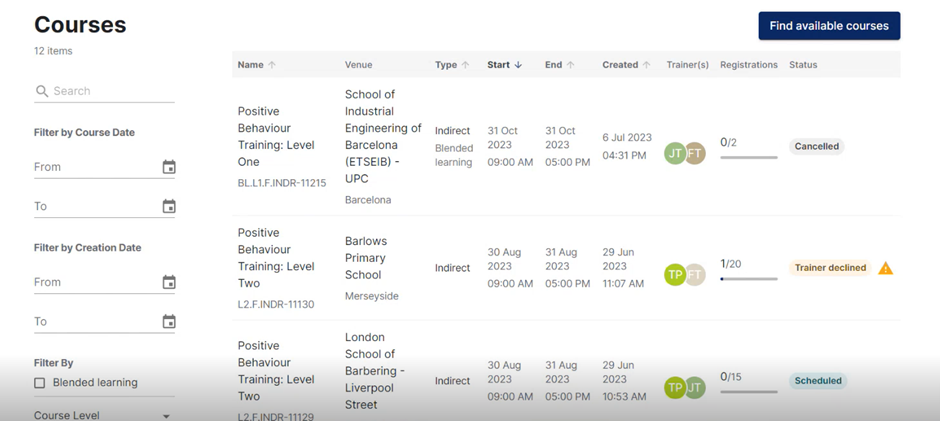
Select a course name to find more information about the current status of the course. You can see who is booked to attend the course and whether they have completed their Health and Safety Consent Form.
Select the ‘manage attendance’ button to replace, transfer or remove an individual from a scheduled course.
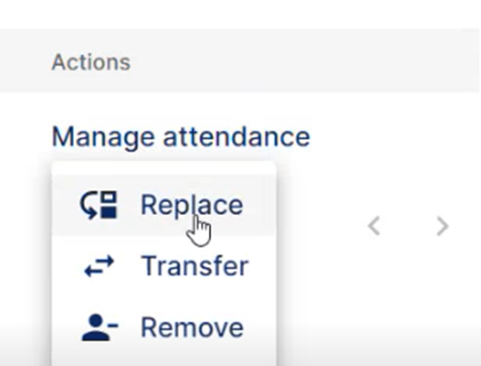
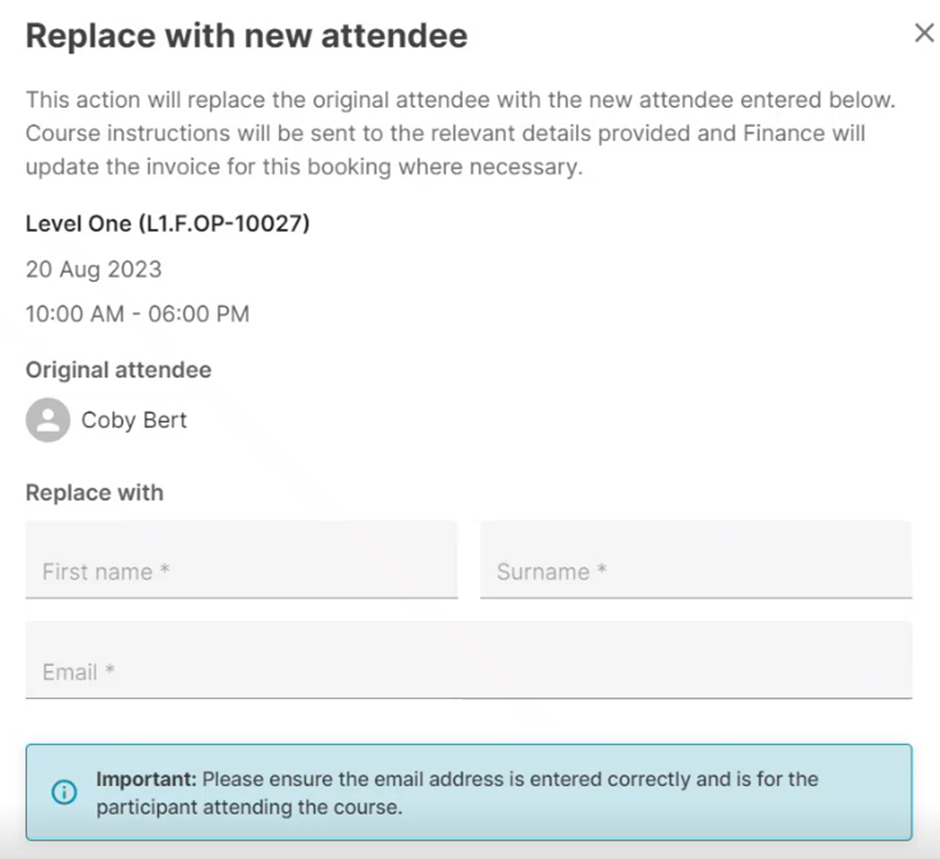
Selecting ‘replace’ will open a pop-up display.
Enter the name and email address of the individual you wish to replace them with. Please ensure the details are added accurately, as the new course participant will receive information about the training by email.
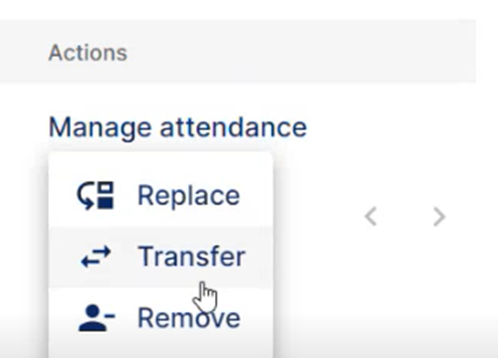
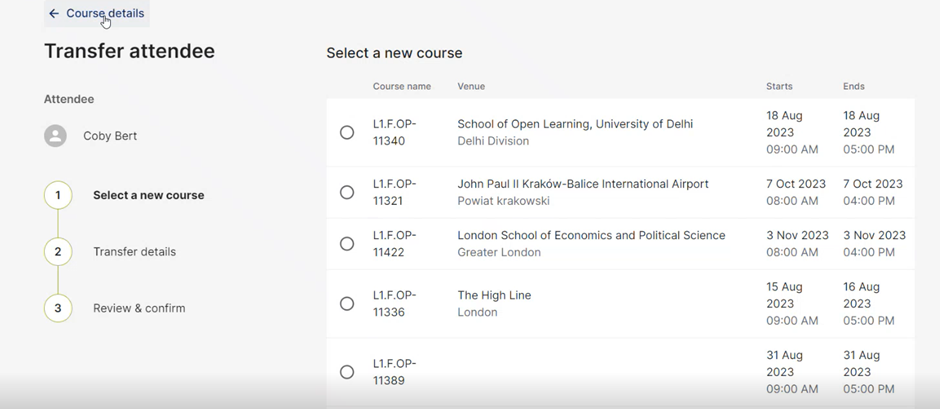
Returning to the ‘manage attendance’ button, selecting ‘transfer’ will display available courses to choose from. Please note that transfer terms apply based on the course start date, and you may need to pay a transfer fee.
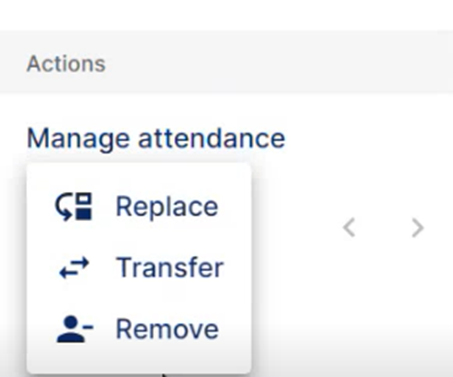
Returning to the ‘manage attendance’ button, selecting ‘remove’ will remove the participant from a training course. Please note that cancellation terms apply based on the course start date, and you will need to pay a cancellation fee.
Add a reason for the cancellation.
Tick the box to confirm that you understand that cancelling your place on a training course cannot be undone.
Finally, select ‘remove attendee’ to remove them from the course.
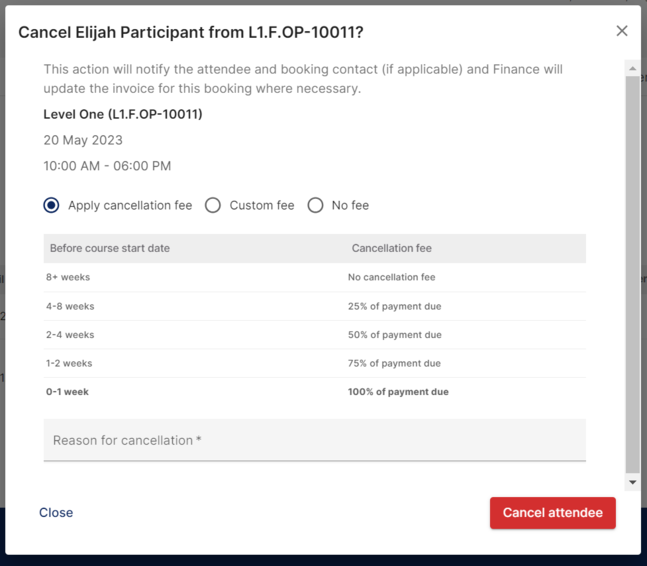
The participant will be notified by email that they have been removed from the course.
For information about viewing and managing the training in your organisation, please see the article Using the Organisational Dashboard.